Yamaha Golf Cart Wraps
Turn a quick style prompt or reference photo into custom Yamaha golf cart wrap designs right on your panels. Compare ideas across six 3D bodies from G16 and G22 to G29 and Drive², add your own lettering or logos, and export in HD.
Yamaha Golf Cart Wraps by Generation
AI can turn a description or reference photo into a custom Yamaha wrap design. Your Yamaha model determines the body shape you see in the designer. Start with the model code on your cart, then compare its cowl, side panels and rear body with the six previews before choosing a graphic.
The Drive² PTV and Fleet are separate choices, as are the G16 and G19 Ultima models. The DRIVE G29 and G22 G-Max also have their own bodies, giving you a useful view of where artwork sits on each generation.
If you are unsure which cart you own, check its identification label and compare the stock thumbnails in the designer. Look at the front cowl and the outline of the side panel before you begin placing artwork.
Drive² PTV and Fleet Bodies
Generate a wrap idea with AI and compare it on the Drive² body that matches your cart. The Drive² PTV and Fleet previews give you two choices for a newer Yamaha body. Both catalog examples have two seats, but their front cowls differ, so compare the nose of your cart with each stock thumbnail.
The Fleet example has a factory cowl without headlights, while the PTV has its own front treatment. A graphic placed near the edge of the cowl can look different between them, even when you start with the same colors.
Choose the body that looks like yours, then turn it in 3D to inspect the sides and rear. Open the Drive² designer and try a broad shape on the cowl before adding smaller details to the sides.
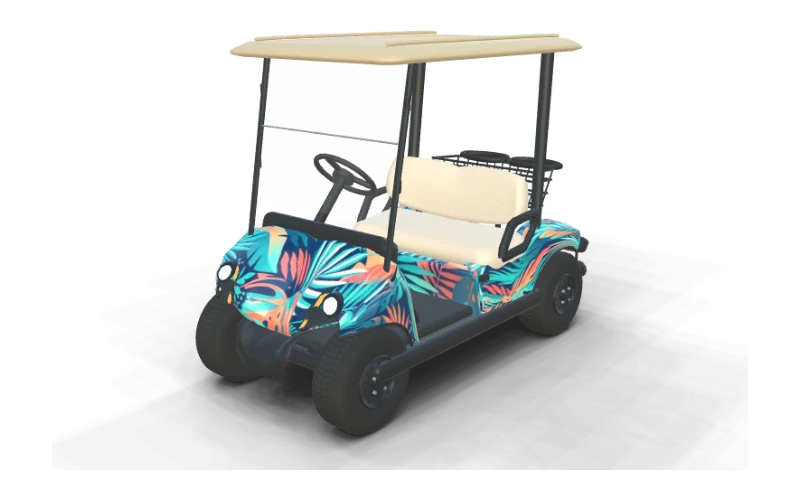
Yamaha Drive² PTV QuieTech EFI Wrap
seats, gas, Glacier White with Stone roof
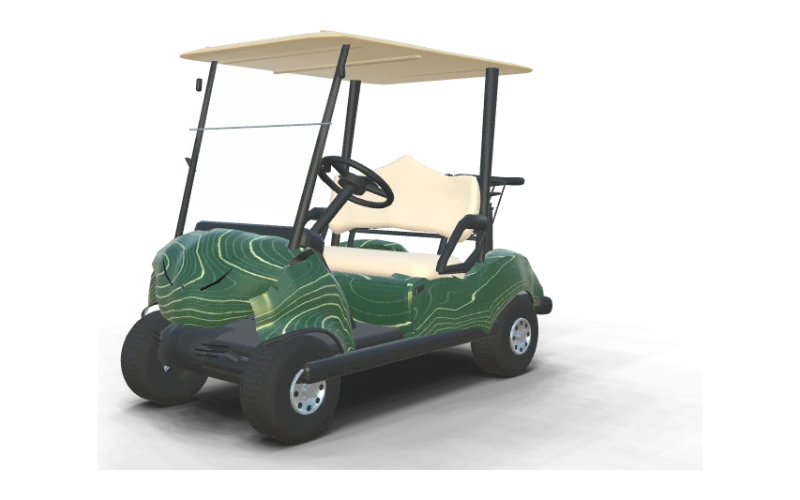
Yamaha Drive² Fleet QuieTech EFI Wrap
fleet cart, factory cowl without headlights, beige-gold
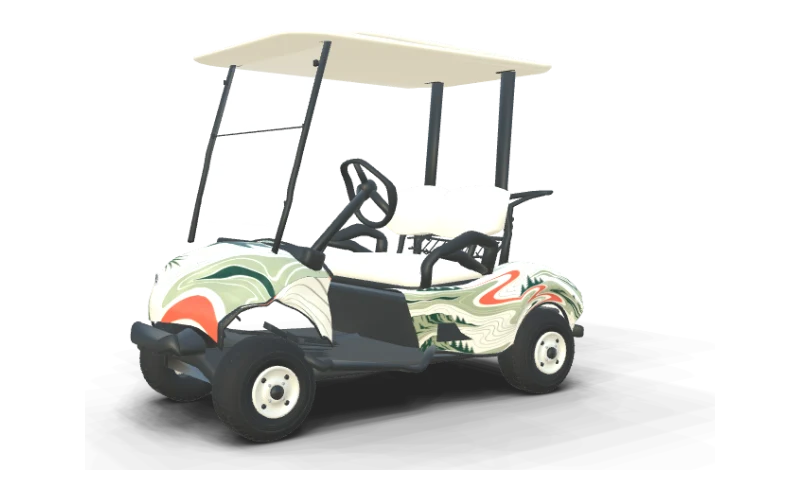
Yamaha The DRIVE / G29 Wrap
or YDRE, two-seat fleet body
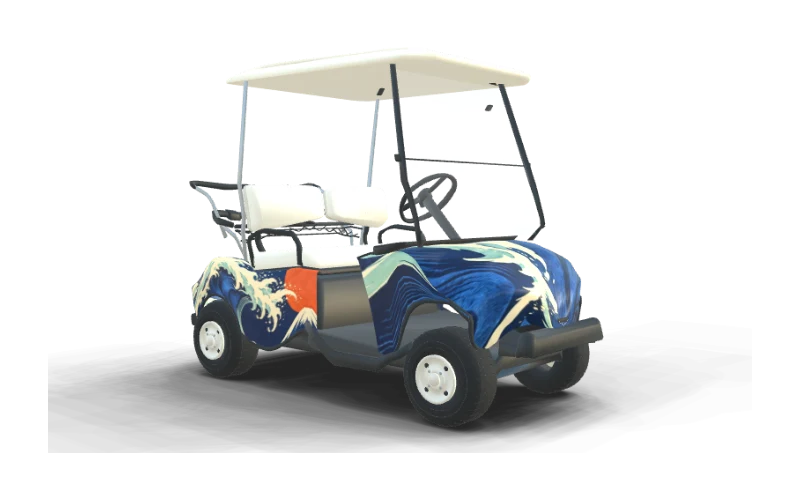
Yamaha G16 Ultima Wrap
or G16E, two seats
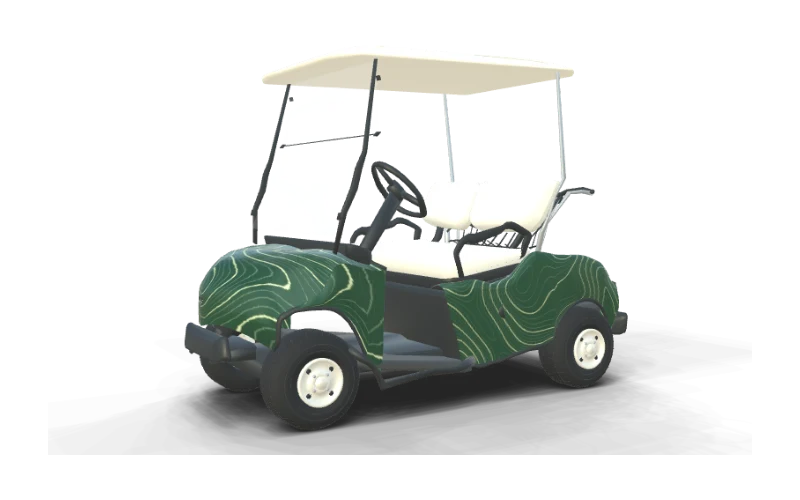
Yamaha G19 Ultima 48V Wrap
48V, two seats
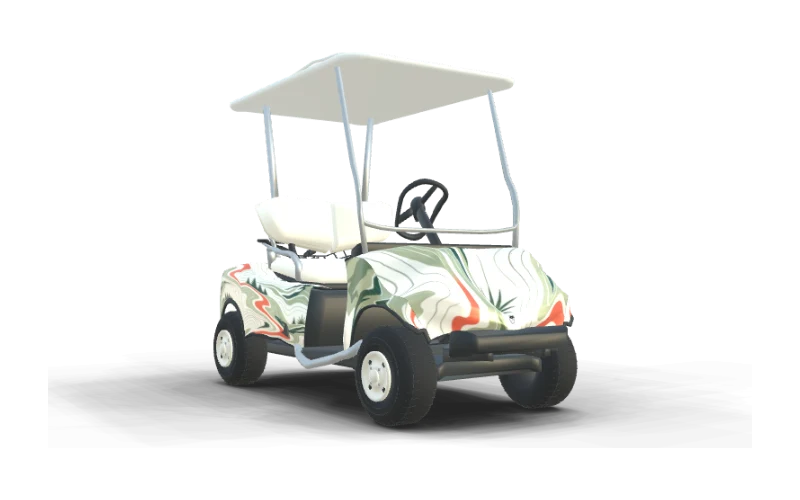
Yamaha G22 G-Max Wrap
or G22E, two seats
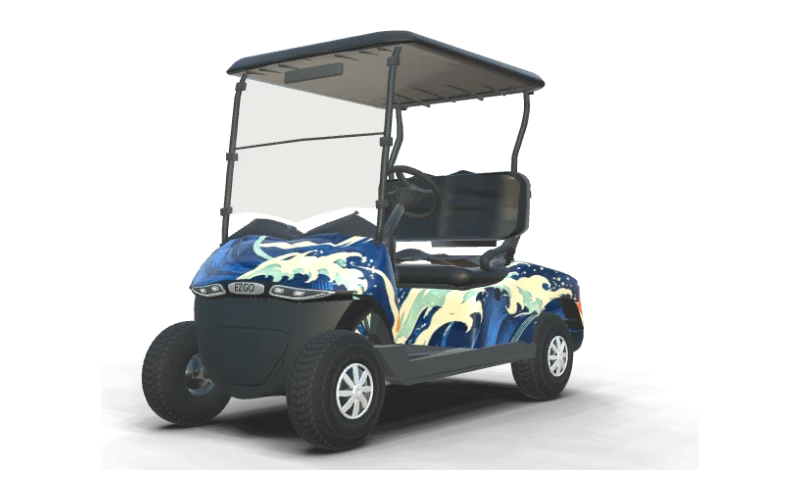
Design Your Own Wrap
Start from a library design, an AI pattern or your own artwork
A Graphic for the Original DRIVE G29
Ask AI for a sweeping stripe or another custom wrap idea for your G29. The original DRIVE G29 gives a side graphic room to travel along the body. A sweeping stripe or a band of color can make use of that length, while a smaller accent brings the same idea onto the curved front cowl.
Start the stripe away from the panel edges and rotate the cart to see how it meets the front. Adjust the cowl and side separately until their shapes feel connected from the angles where you usually see your cart.
The Fairway Green example shows one way to balance a light graphic with a darker body. Open the G29 preview, try your own colors and compare the view from the rear as well as the front.
G16 and G19 Ultima Models
Ask AI to create a wrap for your Ultima, then compare colors and patterns on your model. The G16 Ultima and G19 Ultima 48V have separate entries in the Yamaha catalog. Their listed series years overlap, so use the model code on your cart as your starting point instead of choosing by year alone.
A wave can give an Ultima side panel a strong direction, while contour lines add a finer texture. Compare the G16 and G19 renders below and notice how the artwork sits near the front edge and rear of each body.
Leave some open space around a name or logo so it remains readable against the pattern. Turn the selected Ultima in 3D and compare both sides before deciding whether the cowl needs a matching accent.
The G22 G-Max Body
Generate a custom wrap with AI and see how the artwork looks on the G22 G-Max. The G22 G-Max has its own two-seat body in the picker. Compare its front cowl with the Ultima previews, then choose a graphic that works with the shape of your G22 rather than relying on a different generation.
The flat sheet divides your design into a front cowl, two sides and a rear body. A large shape can span the visual composition, but each panel needs its own placement so the pieces look balanced on the cart.
Open the G22 preview and try the Fairway design as a starting point. Rotate the body while adjusting each panel, paying attention to how much green and light color remains visible from the front and each side.
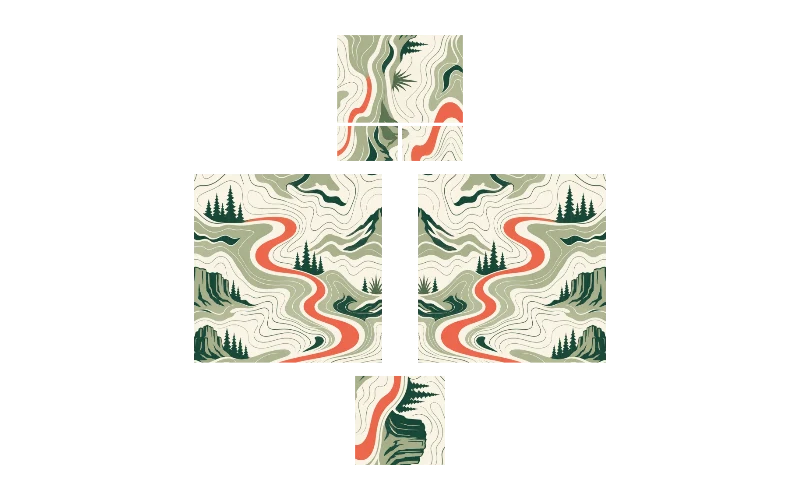
AI Decal Artwork for a Yamaha Golf Cart Cowl
AI can create a custom cowl decal from your description or a reference photo. A cowl decal gives the front of your Yamaha a focal point without filling the entire body. Ask AI for a simple wave, a landscape or a bold emblem in colors that work with the finish already on your cart.
Describe the shape and scale you want, such as a wide blue wave with open space around it. You can also upload a photo as a reference for colors or texture, then adjust the resulting artwork on the flat panel.
Try it with AI, then spin your Yamaha to see the graphic from straight ahead and from each front corner. Move or resize it until the main detail stays clear on the curved cowl from those angles.
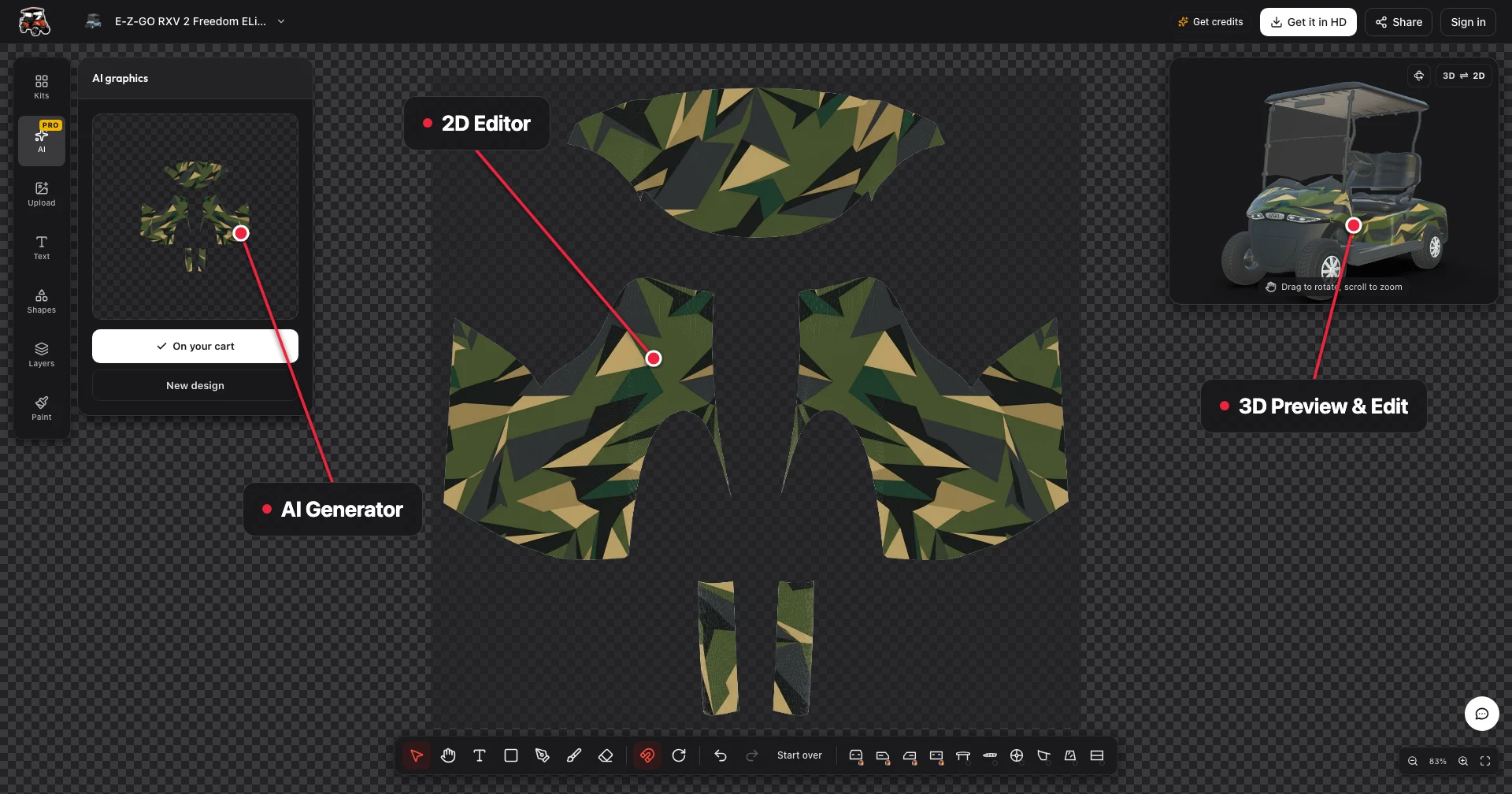
Side Lettering on the Drive²
Generate a wrap with AI, then add a name or short phrase to make your Drive² personal. A name or short phrase can make a Drive² feel personal while leaving the body color visible. Pick the PTV or Fleet body that matches your cart and place the lettering where it has room to breathe on the side.
Set the left side first, then place the text separately on the right so it reads normally from outside the cart. Spin the preview and check the space between the letters, the panel edge and any curves.
A short name usually gives you more room to use larger lettering than a long phrase. Explore golf cart decals for more placement ideas, then compare the text with a small cowl accent in the same color.
Pick your Drive²
Choose the PTV or Fleet body that matches your cart.
Set the left side
Place your lettering with space around the panel edges.
Set the right side
Repeat the lettering so it reads cleanly without mirroring.
Spin the cart
Check spacing around curves from both sides in 3D.
AI Wrap Patterns at Two Scales on Yamaha G-Series Carts
Ask AI for the same pattern at different scales, then compare the wrap designs on your Yamaha. Pattern scale changes how a G-Series Yamaha reads from a distance. A tight repeat creates texture across the body, while a large motif gives the cowl and sides fewer, more distinct shapes to carry the design.
Try a medium repeat if you want detail on the side without crowding the front. Compare the same colors at different sizes, then turn the cart to see whether the rear feels as busy or as open as the sides.
For camo, keep enough contrast between neighboring patches that the shapes remain visible. Read our golf cart camo wrap scale guide for more ways to compare a pattern before settling on your favorite for the cart.
From a Yamaha Decal to a Full Body Design
Ask AI for a small decal or a full Yamaha wrap and compare the coverage on your cart. A single decal can be enough when you like your Yamaha factory color. Put a name or emblem on one side, leave the other panels in a matching body color and turn the cart to see the contrast.
For more coverage, repeat an accent on both sides or add a related shape to the cowl. A full-body design carries a larger pattern or flowing stripe around the whole cart, including the rear.
Browse the Yamaha gallery to compare how different graphics change the look of each body. For more directions to try, see golf cart wrap ideas, then bring your favorite colors into the editor on your chosen Yamaha body.
Miami Palms
Yamaha Drive² PTV QuieTech EFI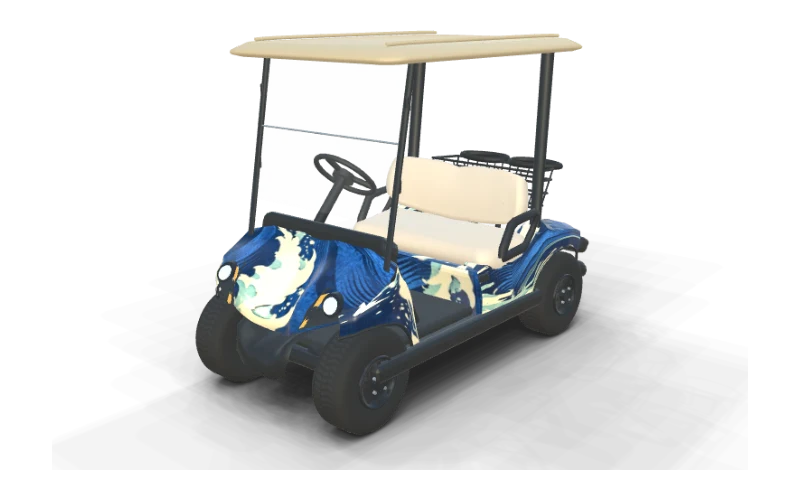
Coastal Current
Yamaha Drive² PTV QuieTech EFIContour Lines
Yamaha Drive² Fleet QuieTech EFIFairway Green
Yamaha The DRIVE / G29Coastal Current
Yamaha G16 UltimaContour Lines
Yamaha G19 Ultima 48VFairway Green
Yamaha G22 G-MaxCredits and HD Exports for Your Yamaha
You can preview your Yamaha in 3D and edit the panels manually for free. Change colors, upload your own images and turn the cart to compare the front, sides and rear before choosing an export.
Credits pay for AI designs and HD exports when you want them. A text AI design costs 10 credits, a photo AI design costs 20 credits, and a watermark-free HD export unlock for one cart costs 30 credits.
The entry pack is $9.90 for 200 credits, and pack credits never expire. Visit pricing to compare the available packs and keep any remaining credits for another Yamaha design when you are ready to try a new idea.
Yamaha Wrap Questions
Design Your Yamaha Golf Cart Wrap in 3D
Pick your Drive², G29, G22, G19 or G16 body, generate custom AI wraps in 3D, and only pay for AI designs and HD exports.
Start designing