Golf Cart Decals
Tell AI the style you want or upload a reference photo to generate custom golf cart decal artwork right on your cart panels. Add your name, number or logo, inspect both sides in 3D and export your finished design in HD.
Personalized Golf Cart Decals Designed With AI
A name or number makes your cart your own, but choosing the artwork around it can be harder. Describe a style such as green fairway stripes or bold coastal waves and AI creates a complete custom decal design on your cart panels.
Have a photo you like? Upload it as a reference and tell AI which colors or details you want to carry into your design. Compare different ideas until you find one that feels right for your cart.
Add your name, number or uploaded logo as clean layers over the artwork. Open the designer, inspect both sides of your cart in 3D and adjust the layout before exporting your favorite in HD.
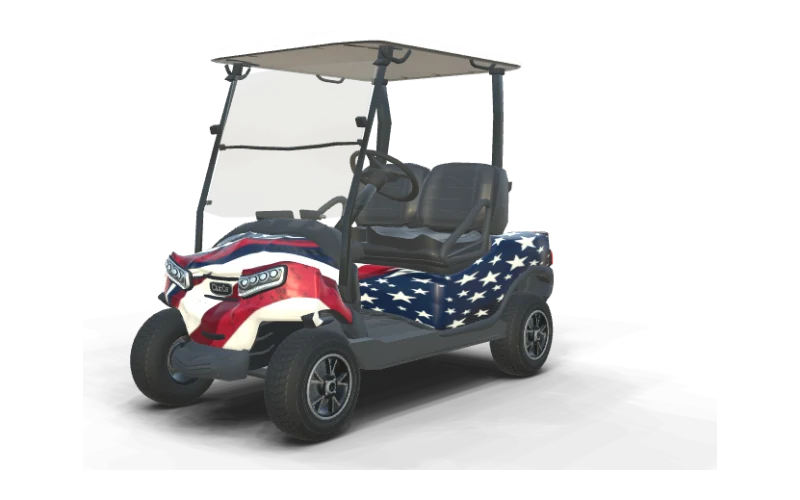
Stars & Stripes
Club Car Onward 2 Passenger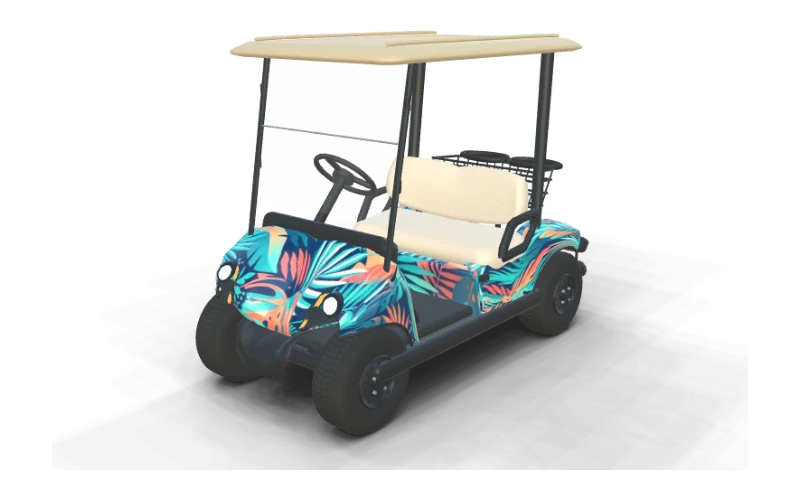
Miami Palms
Yamaha Drive² PTV QuieTech EFI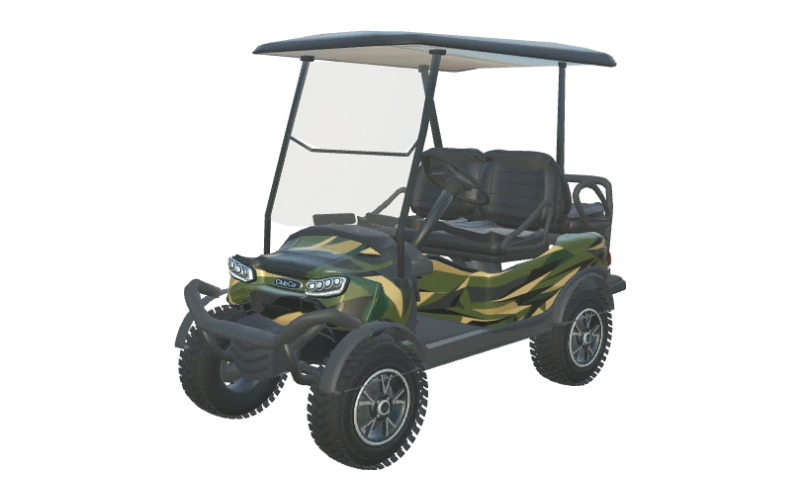
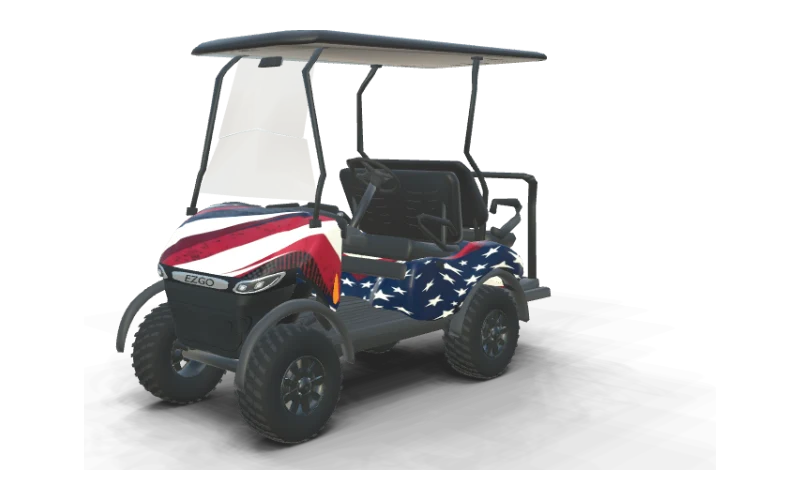
Stars & Stripes
E-Z-GO RXV 4 Summit X ELiTE Lithium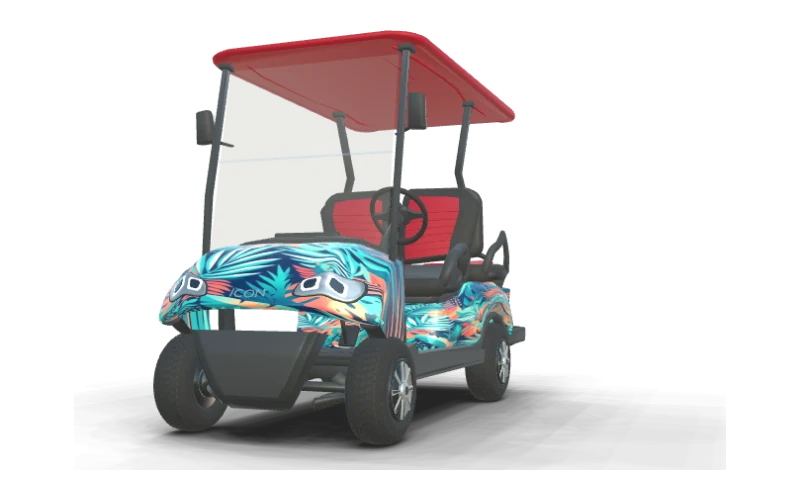
Miami Palms
ICON i40 Standard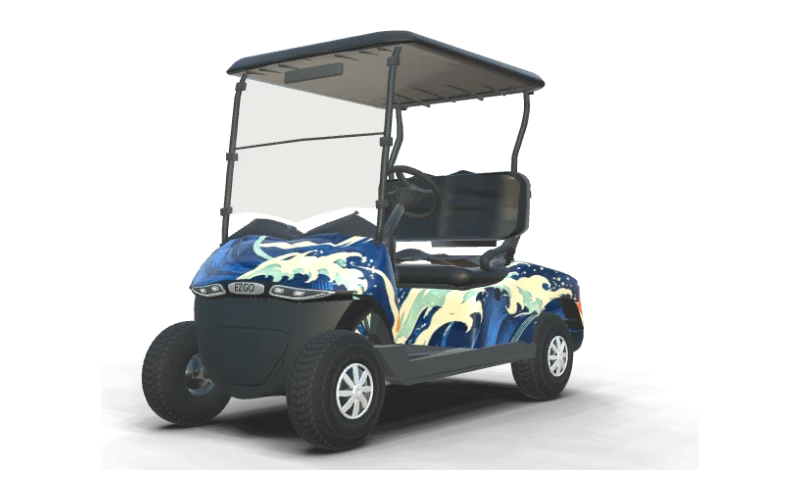
Coastal Current
E-Z-GO RXV 2 Freedom ELiTE Lithium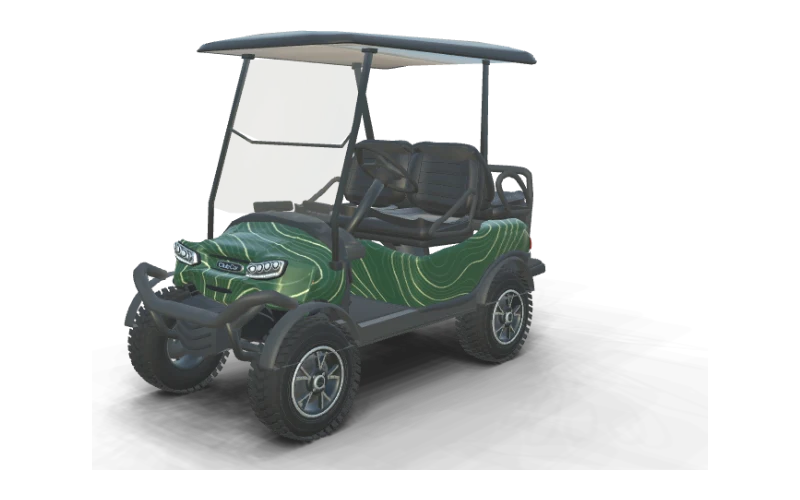
Contour Lines
Club Car Onward Lifted 4 Passenger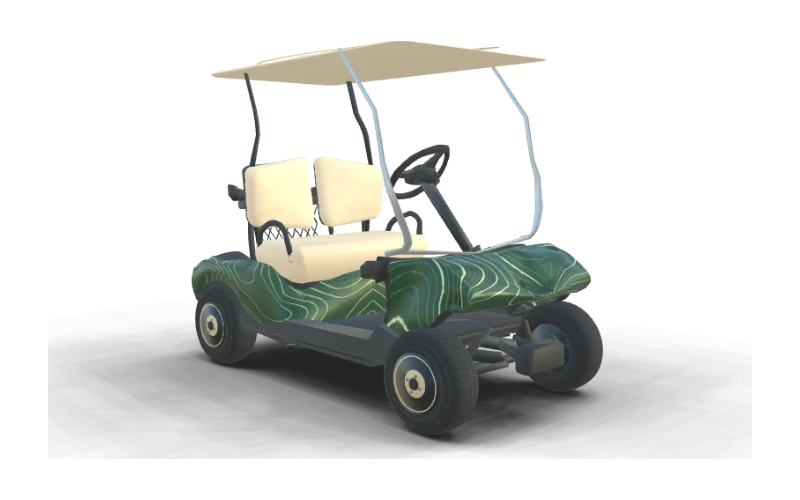
Contour Lines
Club Car DS (early body)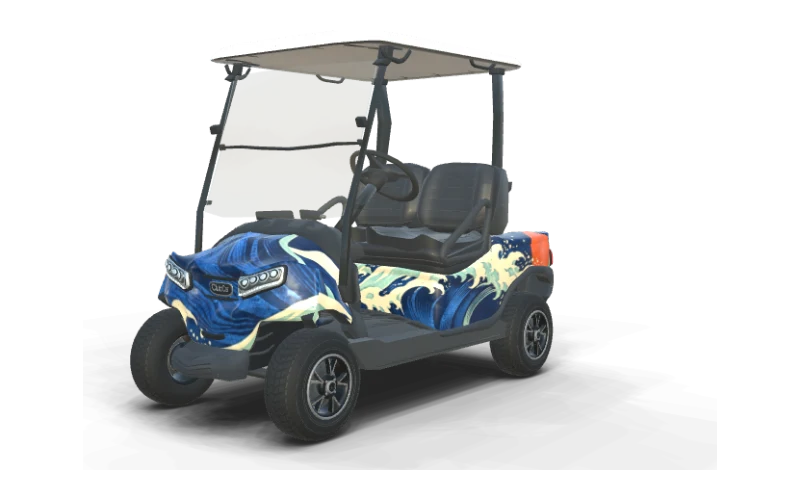
Coastal Current
Club Car Onward 2 Passenger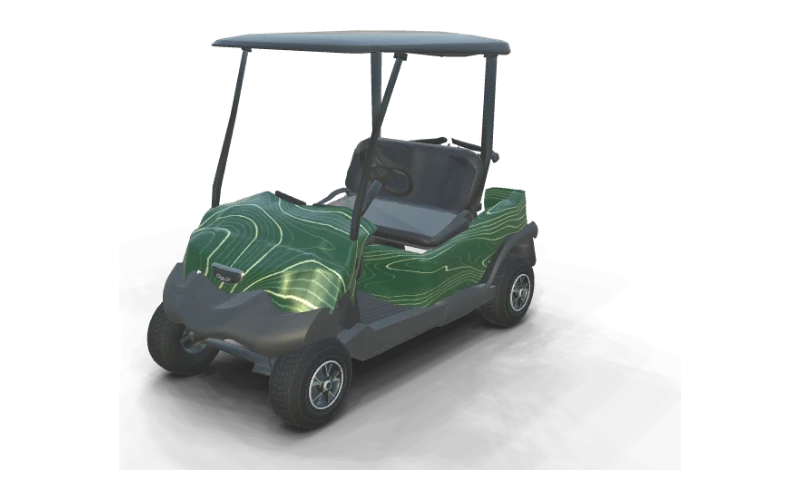
Contour Lines
Club Car Tempo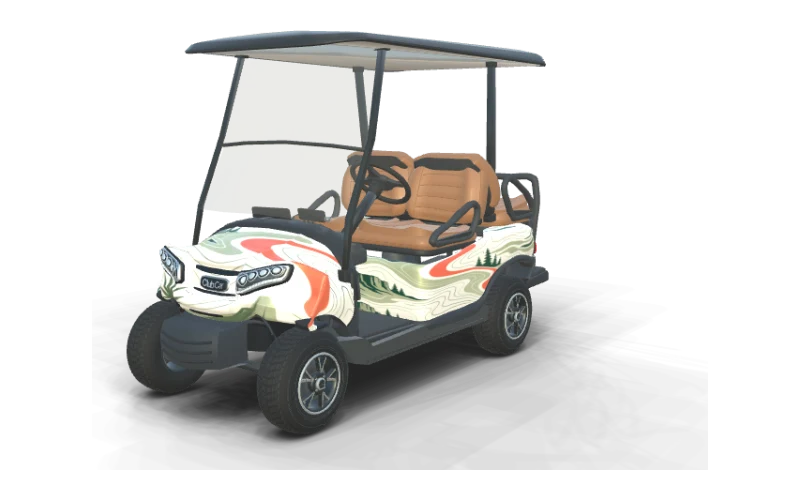
Fairway Green
Club Car Onward 4 Passenger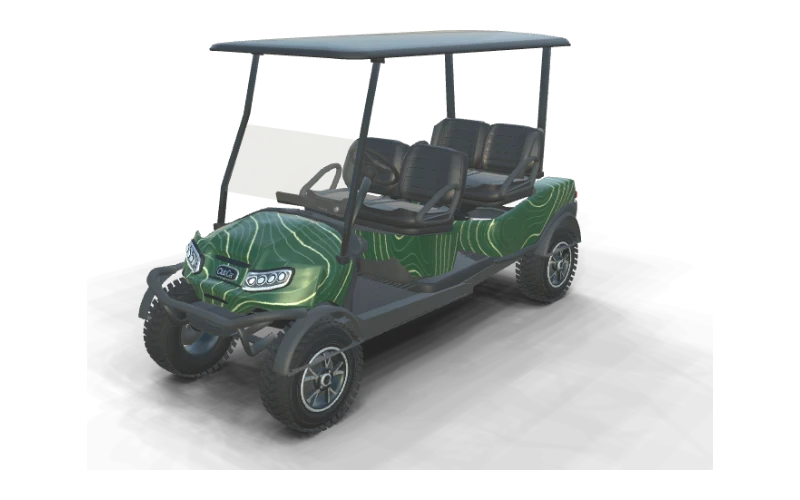
Contour Lines
Club Car Onward 4 Forward Lifted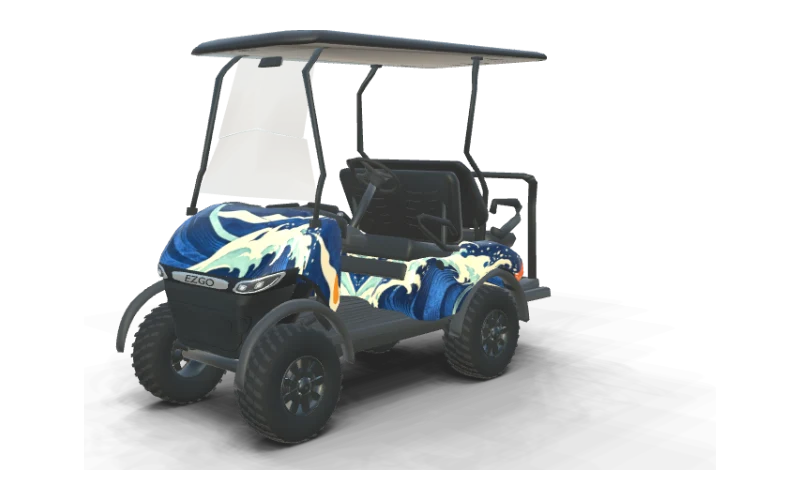
Coastal Current
E-Z-GO RXV 4 Summit X ELiTE Lithium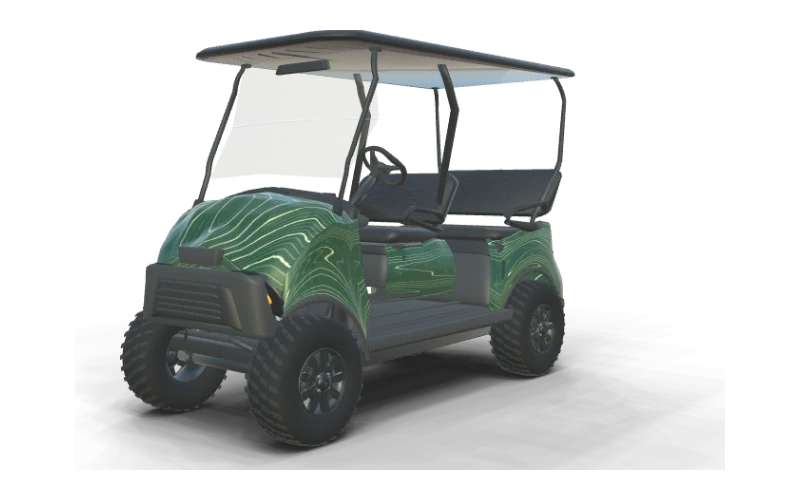
Contour Lines
E-Z-GO Liberty Summit X ELiTE Lithium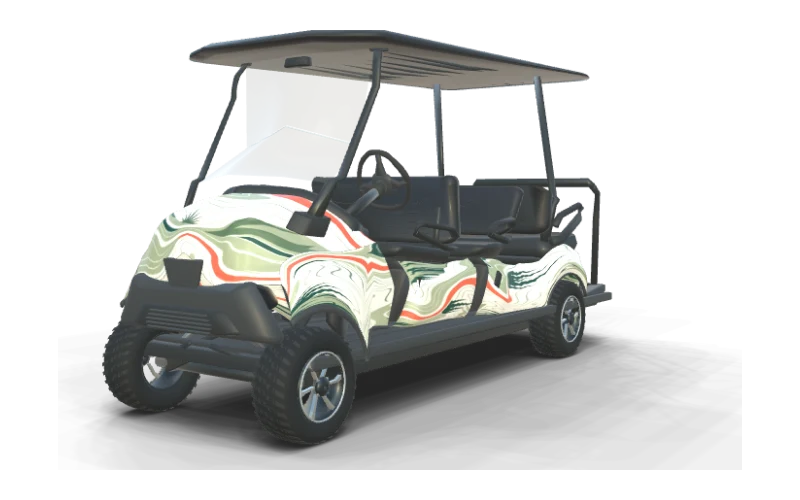
Fairway Green
E-Z-GO Express 6 Touring S ELiTE Lithium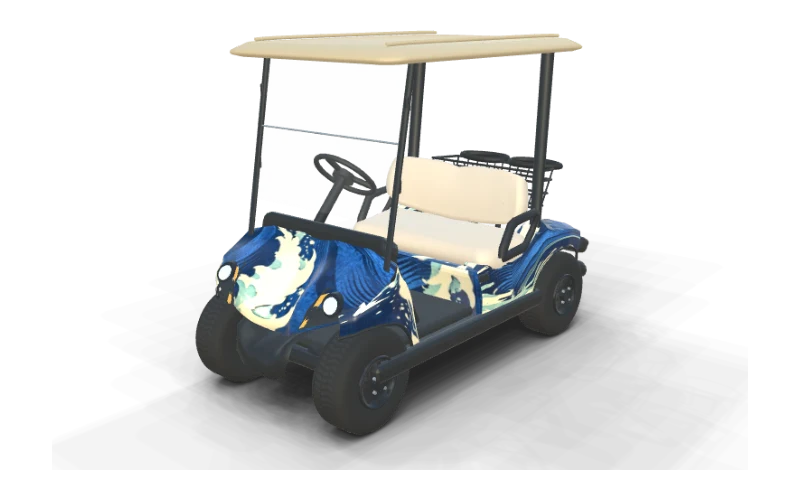
Coastal Current
Yamaha Drive² PTV QuieTech EFI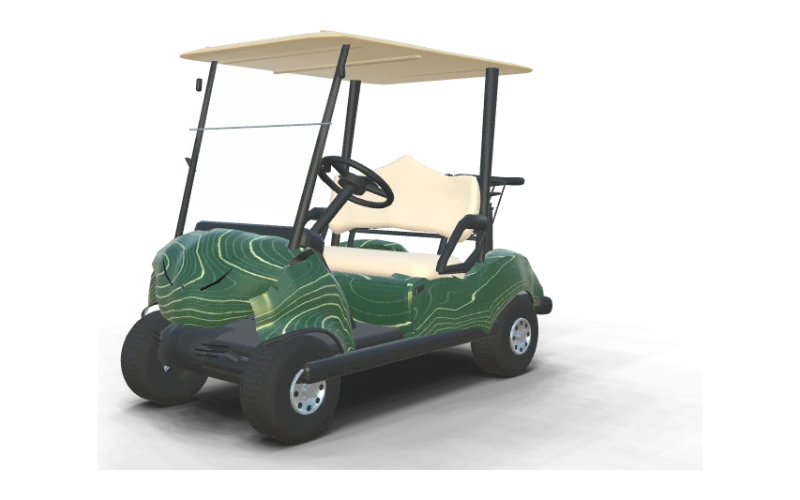
Contour Lines
Yamaha Drive² Fleet QuieTech EFI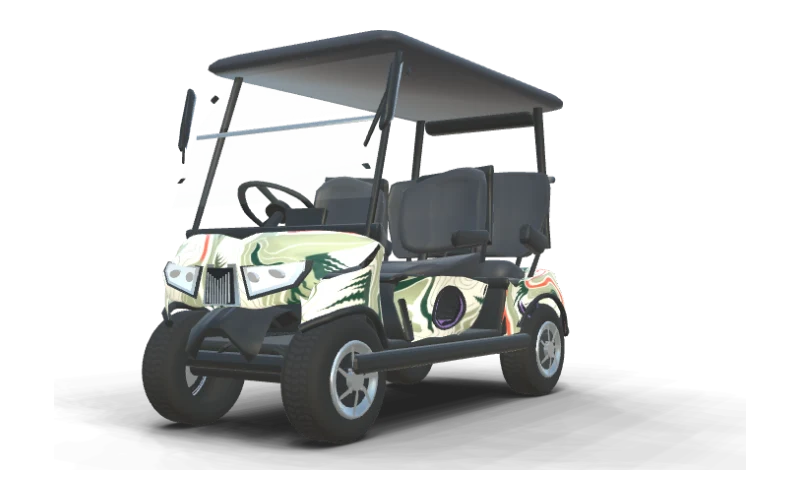
Fairway Green
Evolution D5 Ranger 4 Plus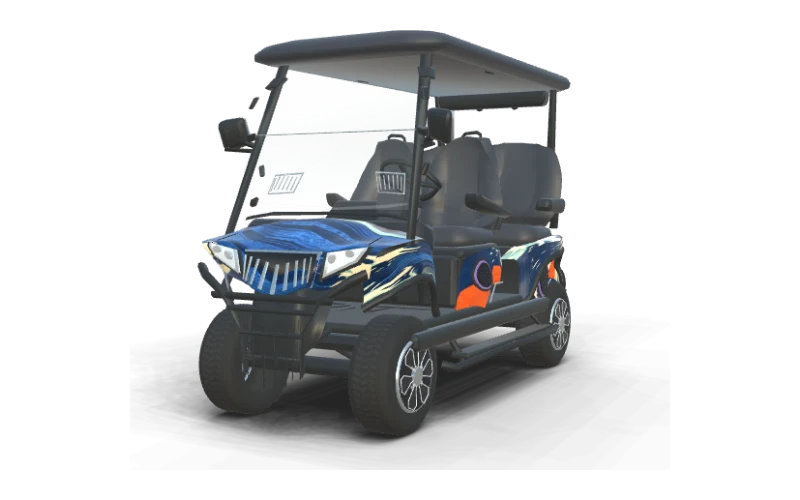
Coastal Current
Evolution D5 Maverick 4 Plus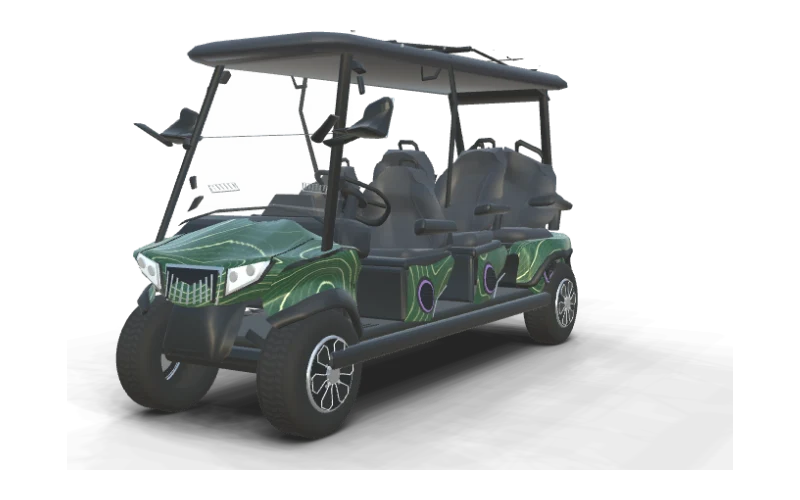
Contour Lines
Evolution D5 Ranger 6 Plus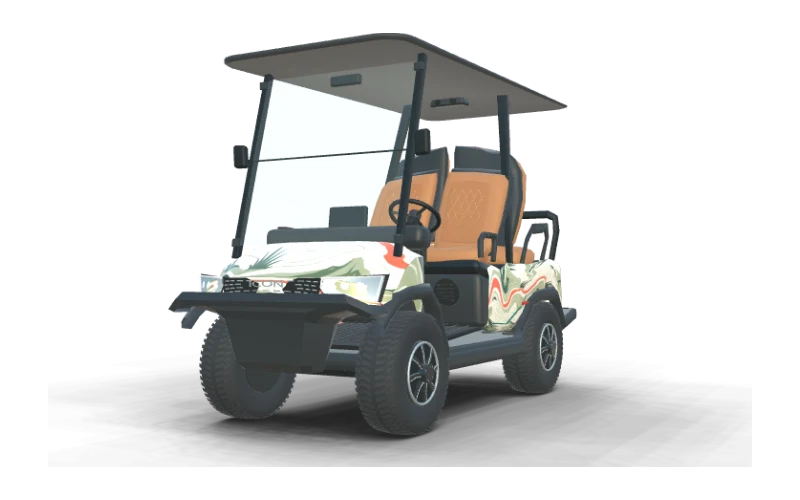
Fairway Green
ICON i40X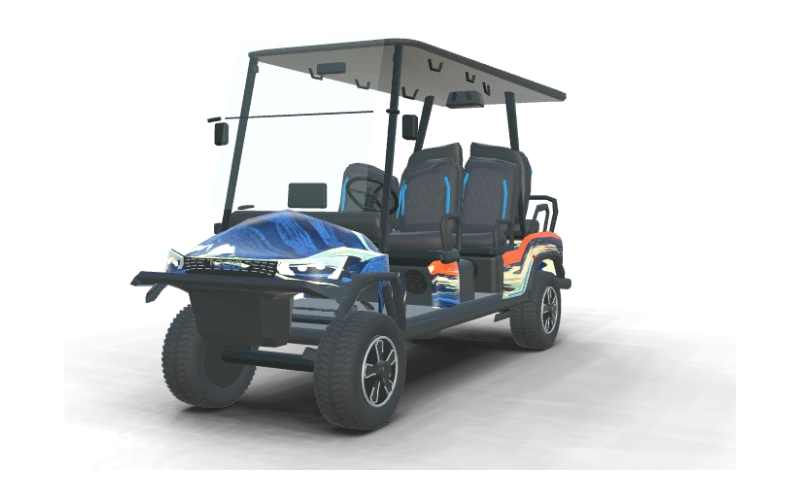
Coastal Current
ICON i60LX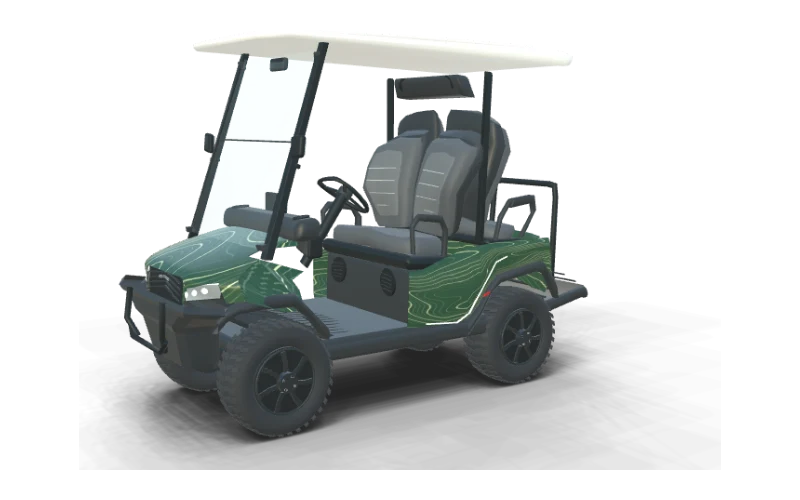
Contour Lines
Bintelli Beyond 4PR Lifted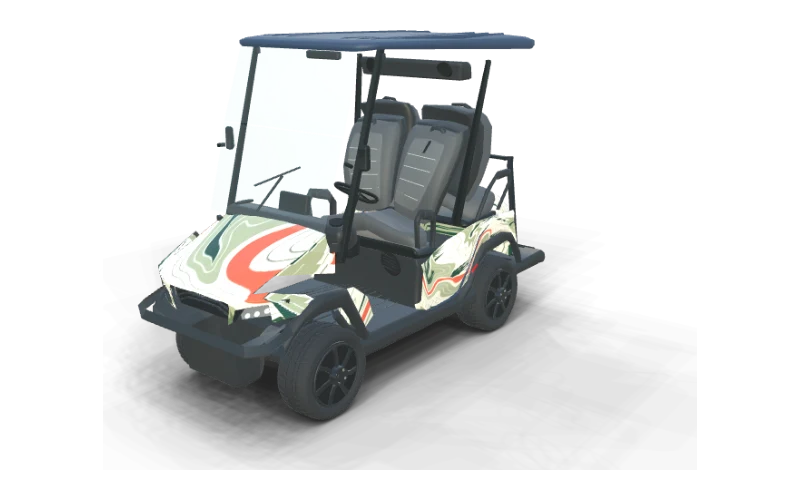
Fairway Green
Bintelli Beyond 4PR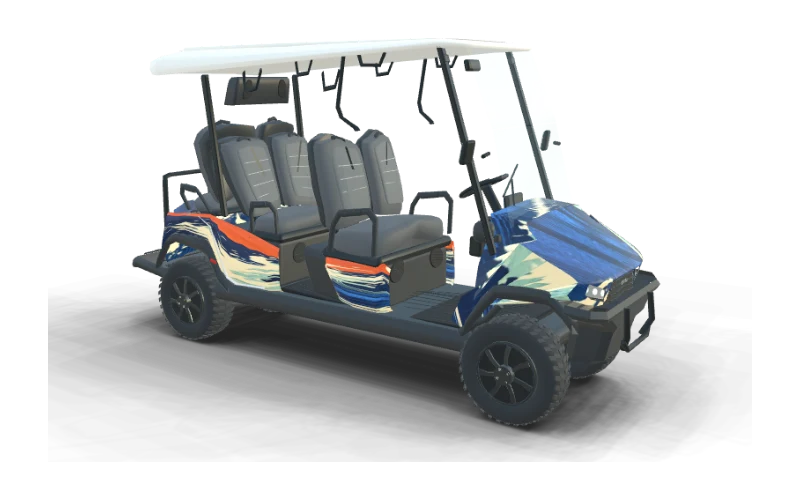
Coastal Current
Bintelli Beyond 6PR Lifted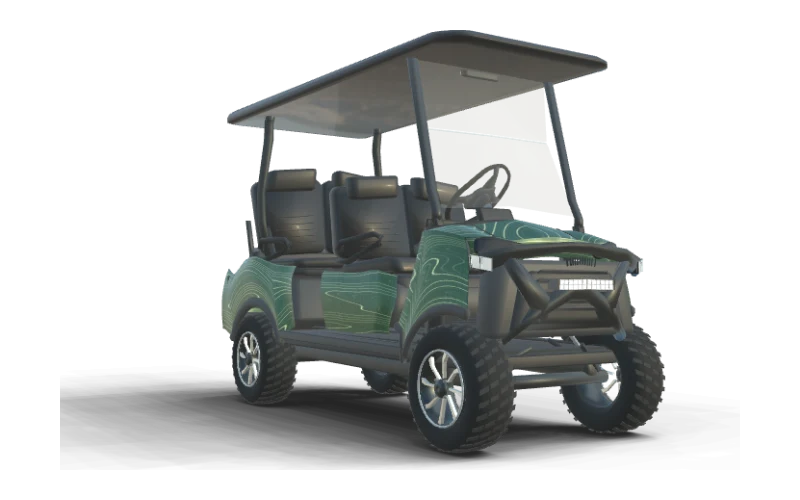
Contour Lines
Denago EV Rover XL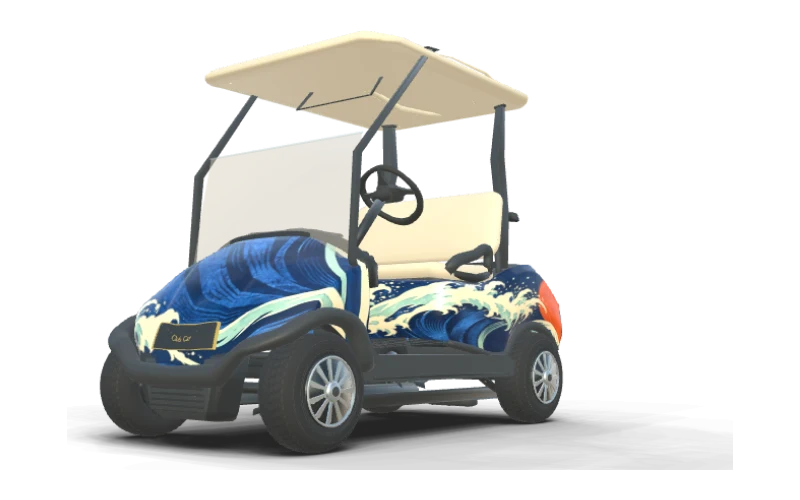
Coastal Current
Club Car Precedent i2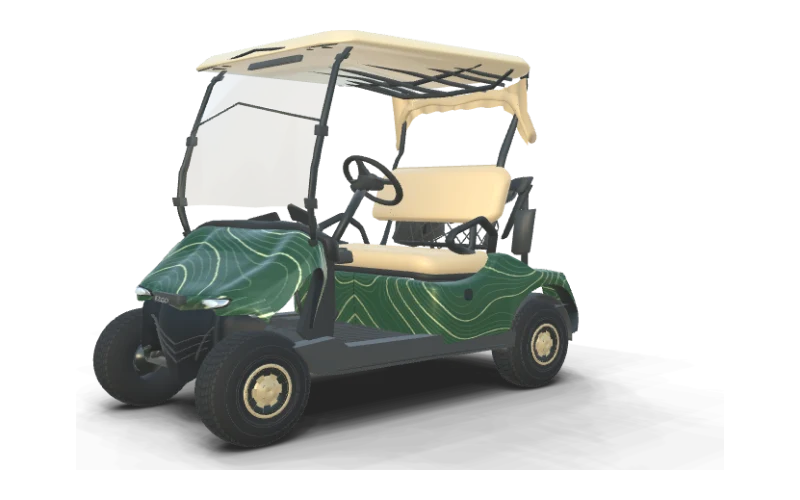
Contour Lines
E-Z-GO Freedom TXT (updated front cowl)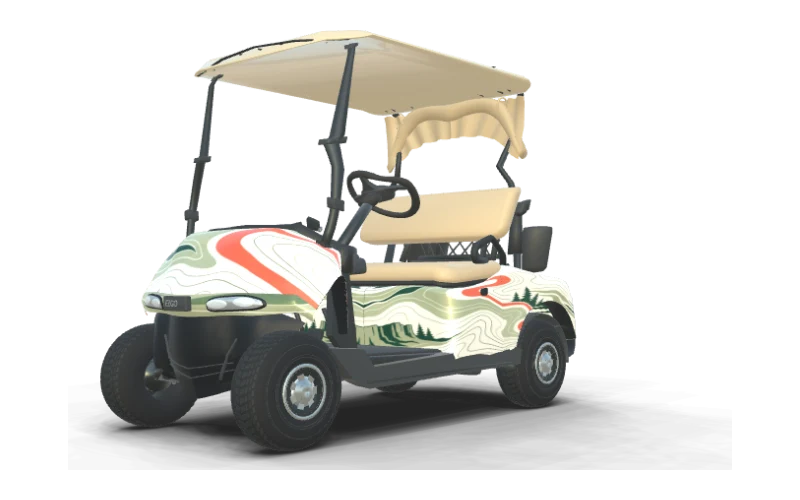
Fairway Green
E-Z-GO Freedom RXV (early front cowl)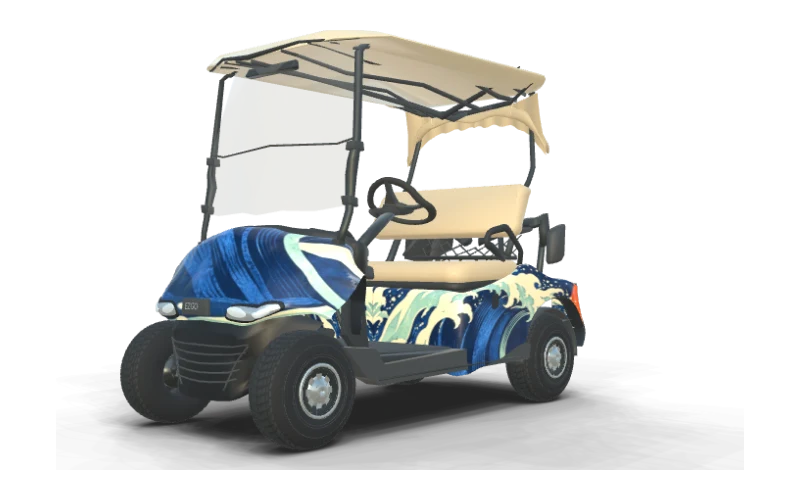
Coastal Current
E-Z-GO Freedom RXV (mid-generation front cowl)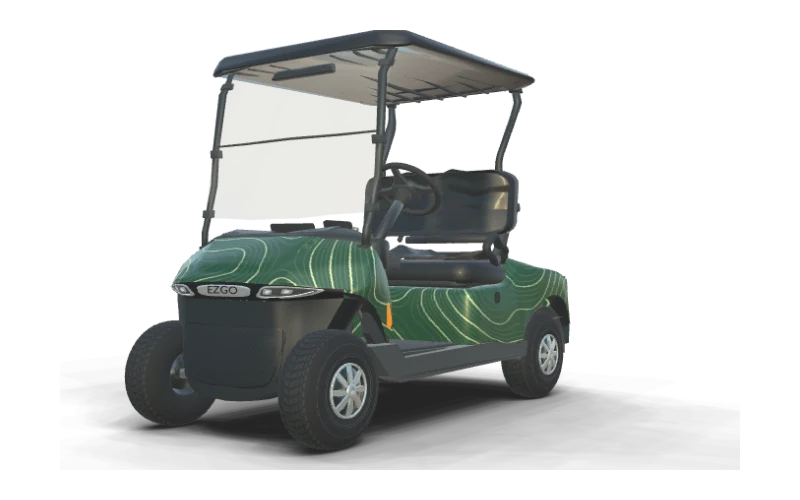
Contour Lines
E-Z-GO Freedom RXV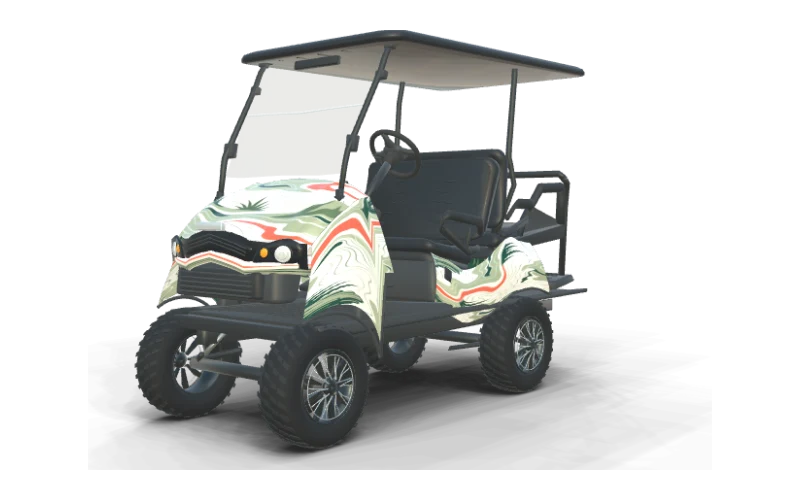
Fairway Green
E-Z-GO Express S4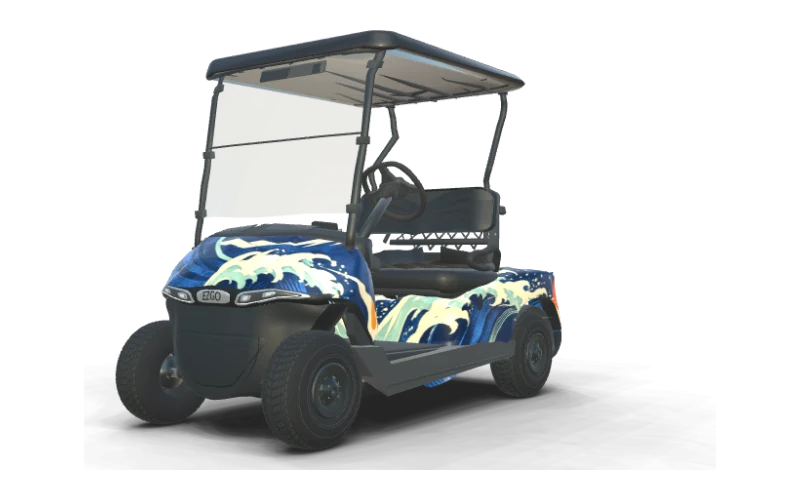
Coastal Current
E-Z-GO Valor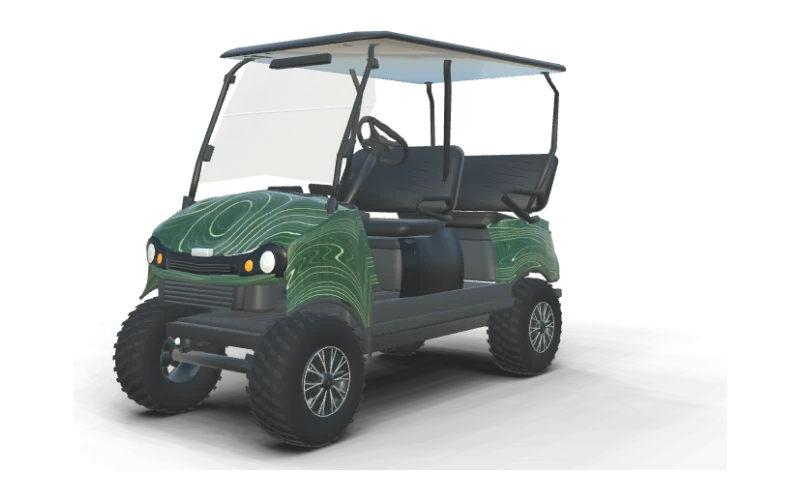
Contour Lines
E-Z-GO Liberty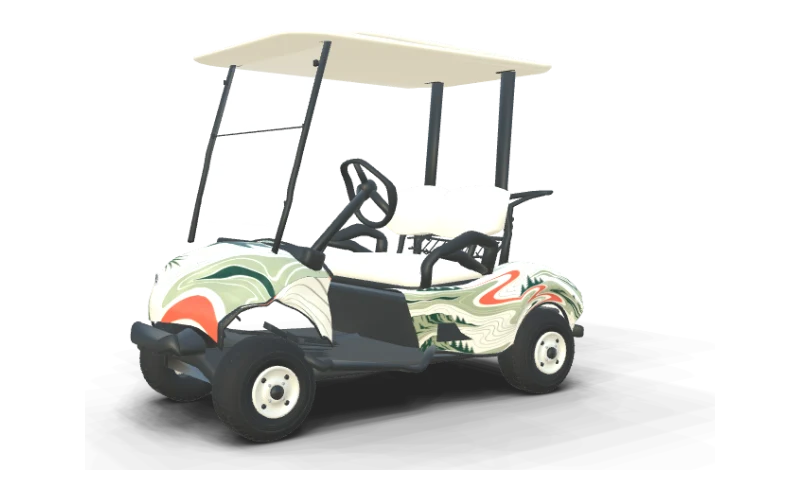
Fairway Green
Yamaha The DRIVE / G29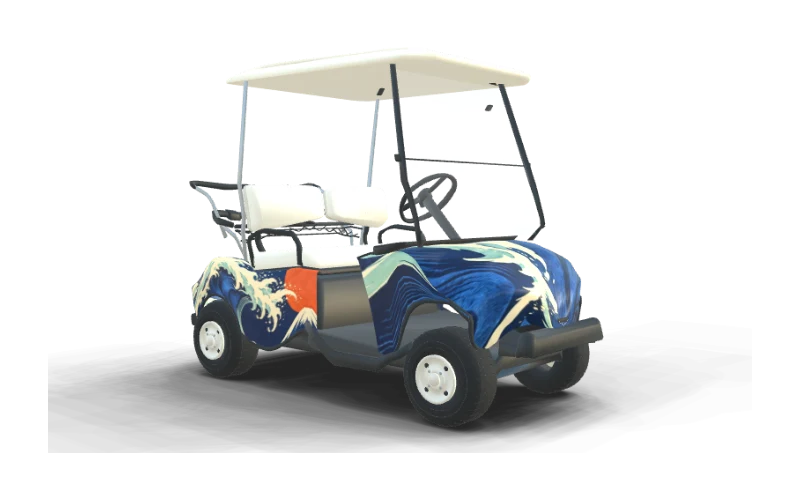
Coastal Current
Yamaha G16 Ultima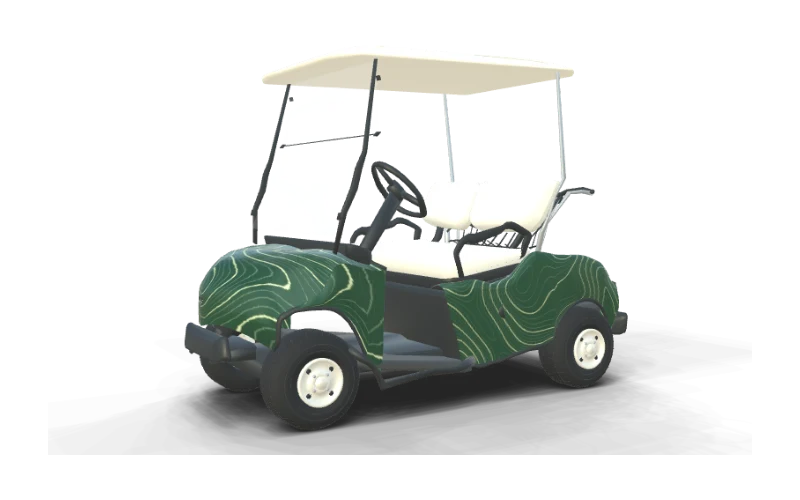
Contour Lines
Yamaha G19 Ultima 48V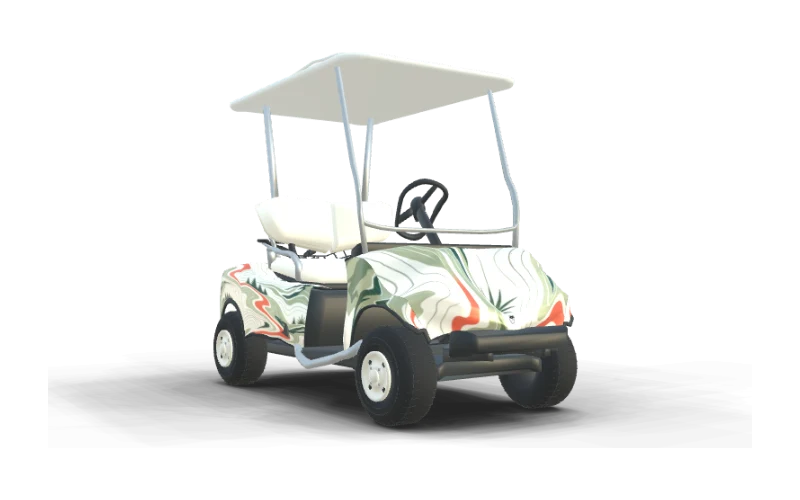
Fairway Green
Yamaha G22 G-Max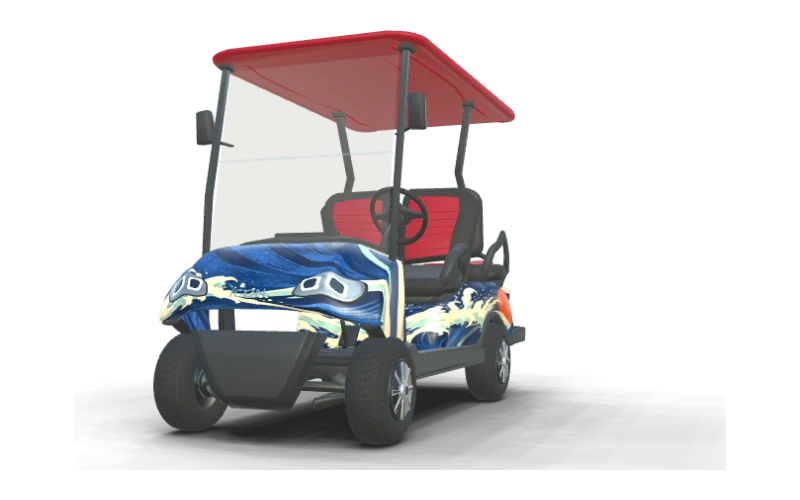
Coastal Current
ICON i40 Standard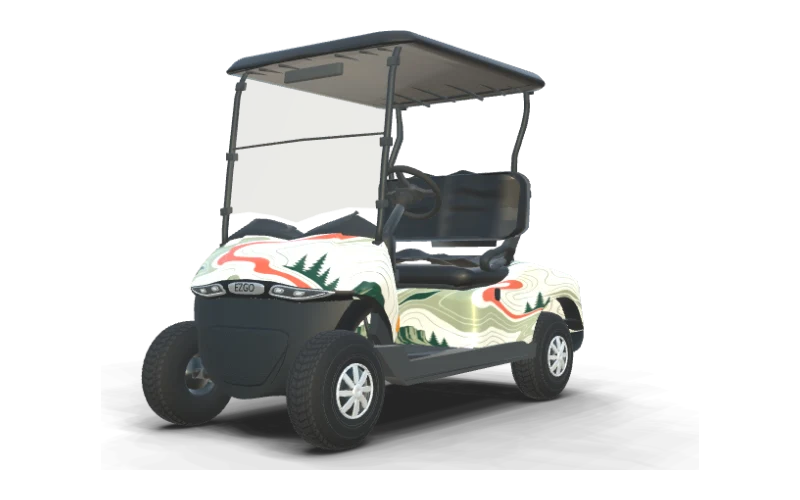
Fairway Green
E-Z-GO RXV 2 Freedom ELiTE Lithium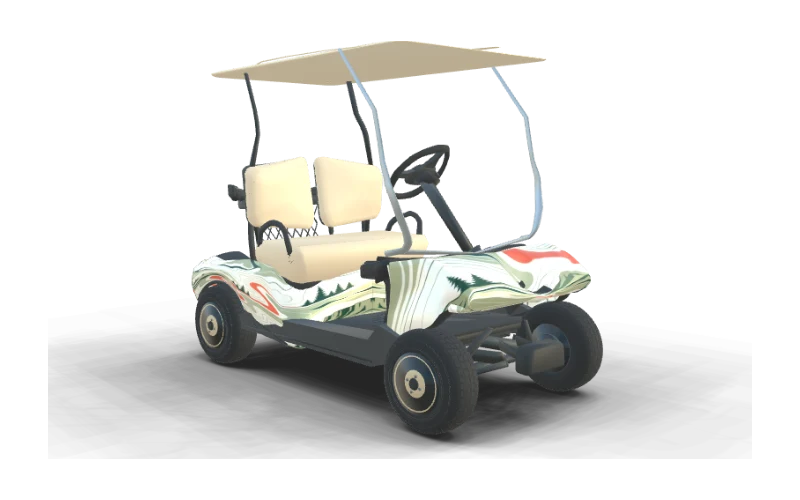
Fairway Green
Club Car DS (early body)A Logo on the Side Panel
A club, business or personal logo can give an AI designed cart its own identity. Generate a design in your preferred colors, then place the logo on a side panel where it has room to stand out.
Upload a transparent PNG when you have one, so an opaque rectangle does not appear around your logo file. Place the image on the flat panel and adjust its size alongside the custom artwork.
A detailed logo may need more room than a simple silhouette. Turn the cart in 3D to compare both sides, leaving space near seams and curves so the mark remains easy to recognize.
Golf Cart Number Decals
A number can make your cart easy to spot in a row. Ask AI for a design in your club colors, then add clear digits to the front cowl, side panels or rear body.
The heights in the table are starting points rather than measurements for every cart. Compare the number with the surrounding artwork and leave enough space for the digits to read clearly on your chosen panel.
For a club or fleet, explore a shared AI design and use the same typeface and color for each cart. Compare single and multiple digit numbers in the 3D preview before settling on a layout.
Short Lettering for Narrow Panels
A short cart name or a few initials can fit where a long phrase would feel cramped. Generate a design that suits your style, then add a single line of lettering to a narrow side panel.
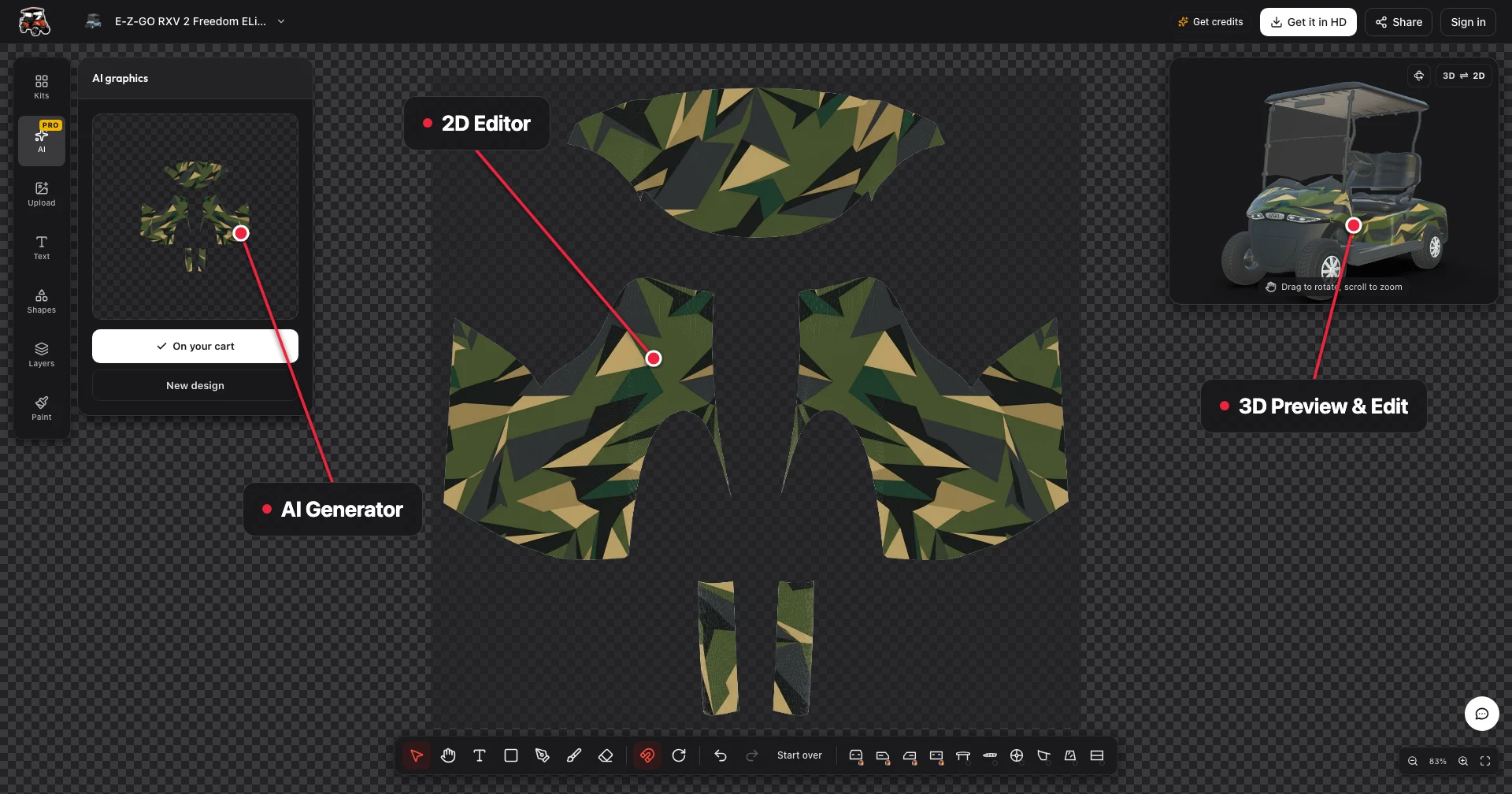
The flat sheet shows the proportions of the cowl, sides and rear. A name that fits comfortably on one panel may need a smaller size or shorter wording on another, especially near a curve.
Choose a clear typeface and leave a margin around the letters. Turn the cart in 3D to see how your name reads alongside the AI artwork from the angles you see most often.
Funny Golf Cart Decals With AI Illustrations
A funny golf cart decal starts with an idea you would enjoy seeing every day. Ask AI for a golf ball wearing sunglasses, a grinning gator or another character in colors that suit your cart.
Describe the subject, mood and colors, or upload a reference photo to guide the design. AI creates custom artwork on the cart panels, giving you a complete look to compare with other ideas.
Add your own phrase as a text layer so you can choose its wording and placement. Try it with AI, then inspect the illustration and lettering on your cart in 3D before exporting.
Decals Against Light and Dark Paint
Your cart color can guide an AI decal design. Try dark green artwork with white lettering on a light cart, or ask for silver and bright blue graphics that stand out against a dark body.
Silver and gray sit between light and dark, so compare a few color combinations before choosing. Describe the contrast you want to AI, then add a name or logo in a shade that stays easy to read.
Set panel colors close to your cart and inspect the generated artwork in 3D. Compare the same side from a few angles, adjusting the size and placement of your lettering until the whole design feels balanced.
Left and Right Lettering Without Mirrored Text
A matching name on both sides can tie an AI decal design together. Start with artwork in your favorite colors, then add lettering that follows the shape of the body without crowding the panel edges.
Use the left panel as your starting point and note the size and spacing. Place matching lettering on the right panel, checking that the words read normally when viewed from either side of the cart.
Turn the 3D cart to each profile and compare the name with the generated artwork. Adjust the position where needed so both sides feel consistent and the lettering has enough room to stand out.
Place on left side
Set the name or number on the left panel with room around its edges.
Duplicate to right panel
Use the same lettering and size on the opposite side.
Keep text unmirrored
Check that the letters read normally when viewed from the right.
Check both profiles in 3D
Rotate the cart and adjust placement against each panel edge.
Golf Cart Graphics or Individual Decals?
An individual name or logo leaves much of your cart color visible, while a larger AI generated graphic gives you room for a stronger theme. Try both approaches if you are still deciding how much coverage you want.
A partial wrap carries custom artwork across selected panels, with your lettering or logo added as a separate layer. A full-body design extends the same idea across the cowl, both sides and rear.
Browse golf cart wrap ideas for stripes, camo and other directions. Describe the look you like to AI, compare the result on your cart in 3D and refine the coverage before exporting.
Your Finished Decal Layout on the Cart
Once AI has created your decal artwork and you have added a name, number or logo, look at the whole cart. The front three-quarter view shows how the cowl and side work together.
Turn to each profile and check that your lettering is easy to read against the custom design. Adjust the layers and give artwork room near seams so the details you care about remain visible.
Body shapes vary across Club Car golf cart wraps, E-Z-GO golf cart wraps and Yamaha golf cart wraps. Choose your model, inspect the finished design in 3D and export your favorite look in HD.
Credits for Custom Artwork
Start with a style or reference photo and let AI create custom artwork for your cart. Uploading logos, adding text and previewing the resulting design on your cart in 3D are free.
Credits pay for AI generation and HD exports. A text AI generation costs 10 credits, a reference photo AI generation costs 20 credits, and an HD watermark-free export unlock for one cart costs 30 credits.
The entry pack is $9.90 for 200 credits, and pack credits never expire. Visit pricing to compare packs and keep remaining credits for another design when you are ready to explore a different look.
Golf Cart Decal Questions
Design Custom Golf Cart Decals in 3D
Pick your cart, place logos, lettering or AI artwork on any panel, and only pay for AI designs and HD exports.
Start designing